Connect the printer : Use the supplied USB cable to connect the thermal printer to your computer, or connect the printer to your local network.
Switch on the printer : Ensure that the printer is switched on.
2. Set up the printer on ChromeOS
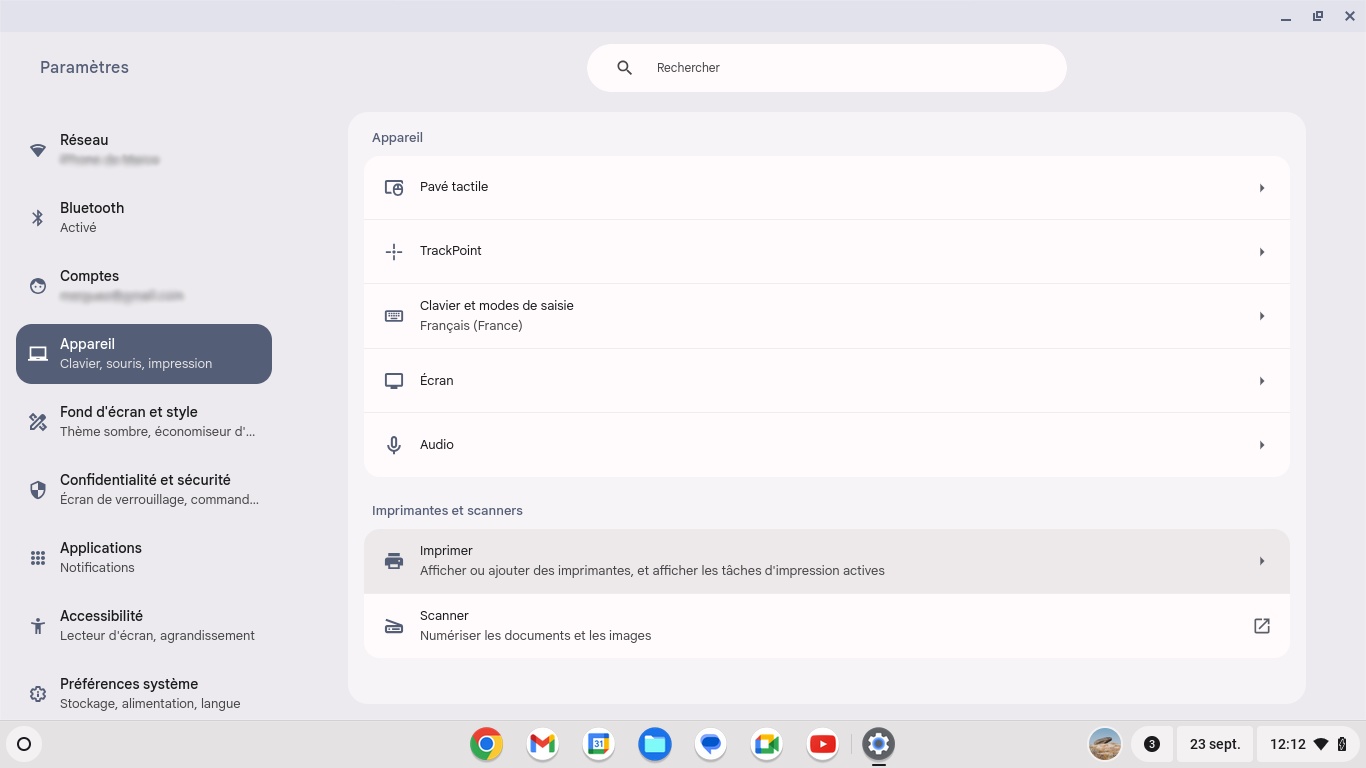
Open Settings: Go to the application launcher at the bottom right, then open the Settings application.
Go to "Devices" : Click on the “Devices” section, then ‘Print’ to display all connected printers.
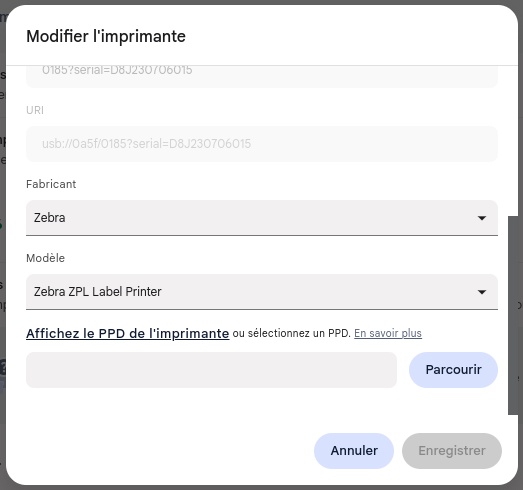
Add a new printer : View the USB-connected printer and click ‘Register’, or manually add the printer using the IP address of the network-connected printer.
Select the printer driver : From the menu displayed, select the manufacturer Zebra and the model Zebra ZPL Label Printer (works for Zebra GC, GK, ZD series printers and Citizen CL series printers), then click Save.
3. Configure the print settings
Create a test shipment : Go to the myDPD for Business application, Shipment tab. Create a shipment by selecting the ‘Thermal printer’ option to the left of the “Create” button, then click ‘Create’. The application will then prompt you to print the label. You must now configure the settings required for optimal printing.
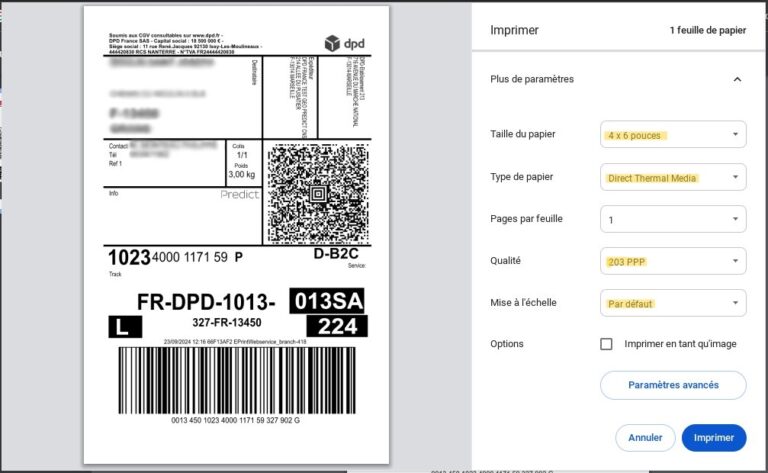
Configure the print options : In the ‘More settings’ section, check or adjust the following settings:
Paper size : 4 x 6 inches
Paper type : Direct Thermal Media
Quality : 203 dpi
Scaling : Default
Check the print preview : the label should be positioned correctly, filling the available space on the consumable. The print should be complete and not spread over multiple pages. Click Print.
You can then cancel the shipment you have created if necessary.
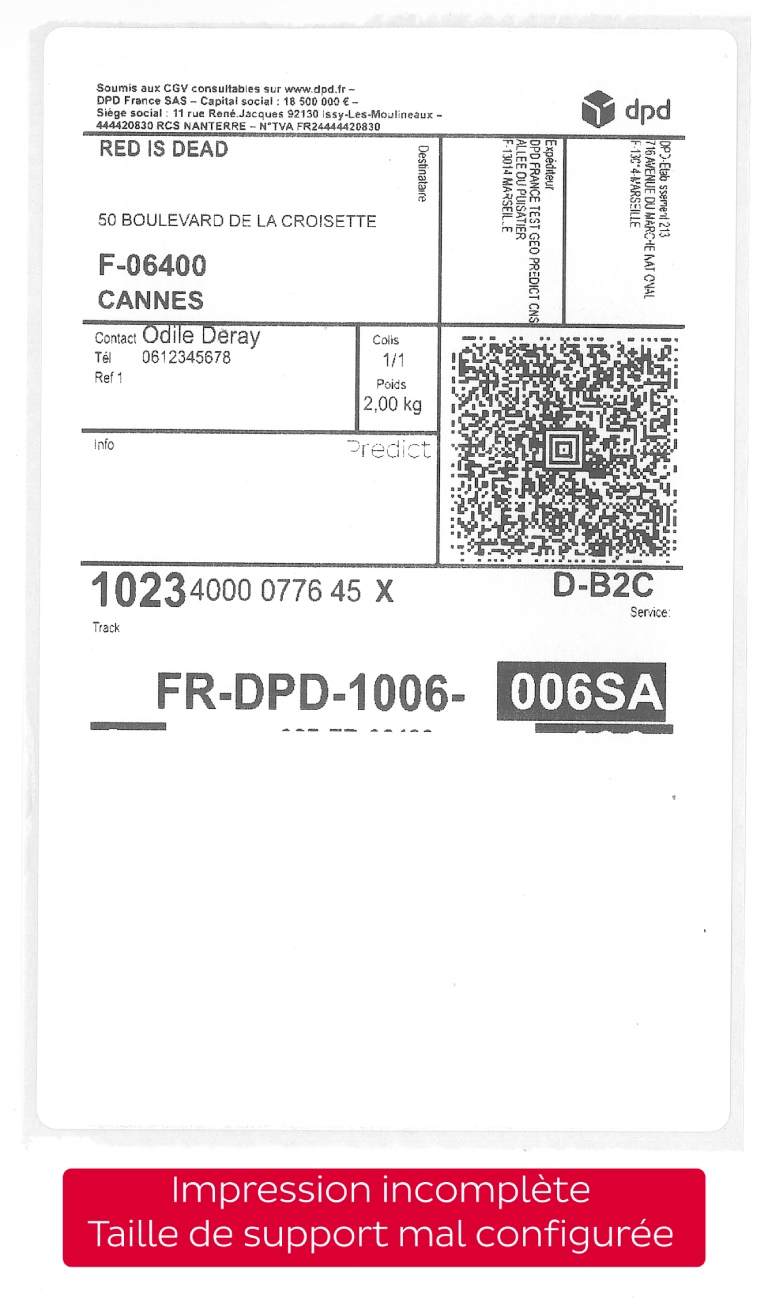
Check the print quality : Once the label has been printed, check the print quality to ensure that it can be read correctly by our network. The DPD logo, text and barcodes must be clearly visible. Slight imperfections may appear on prints from a Chromebook, but this will not affect our ability to read them.
Additional tips
Use compatible labels : Ensure you use labels that are compatible with your thermal printer model for the best printing results.
Clean the printer regularly : Regular cleaning of the print head and rollers can prevent jams and ensure optimal print quality.
By following these simple steps, you can set up and use your thermal printer to print your labels quickly and efficiently. For further assistance, refer to your printer's user manual or contact our IT support team.