What should I do if I have a printing problem?
Check the paper format, your system and browser versions, and the printer settings. See our guides for more details.

 I use a standard A4 printer
Label printed horizontally or overlapping two labels
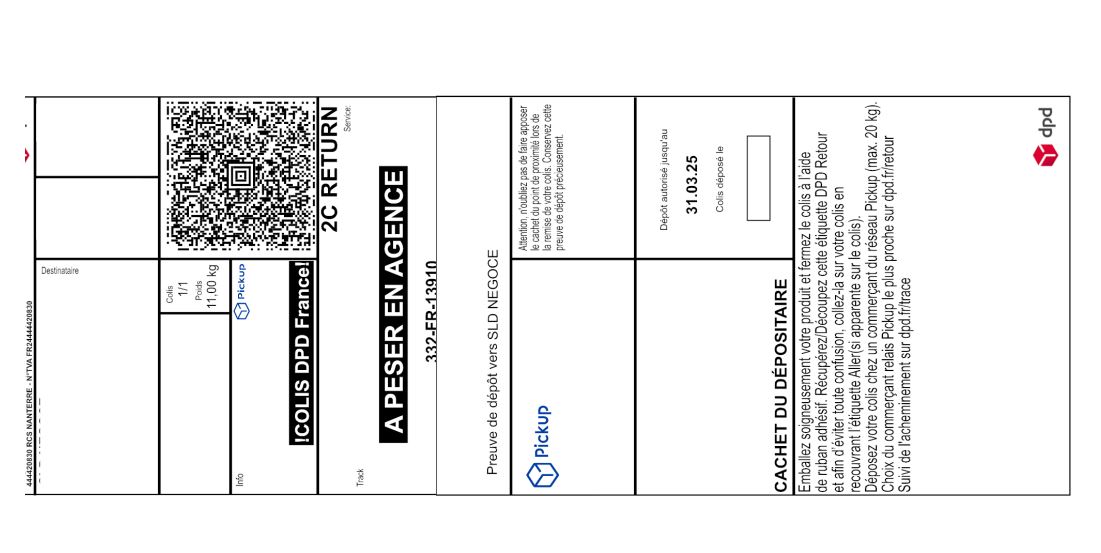
Label printed horizontally or overlapping two labels
This issue is usually related to using an outdated version of your browser.
The minimum browser versions are :
-
Chrome : version 104 or higher
-
Safari : version 15.6 or higher
-
Edge : version 104 or higher
-
Firefox : version 123 ou higher
Incorrect label format (not Geolabel)
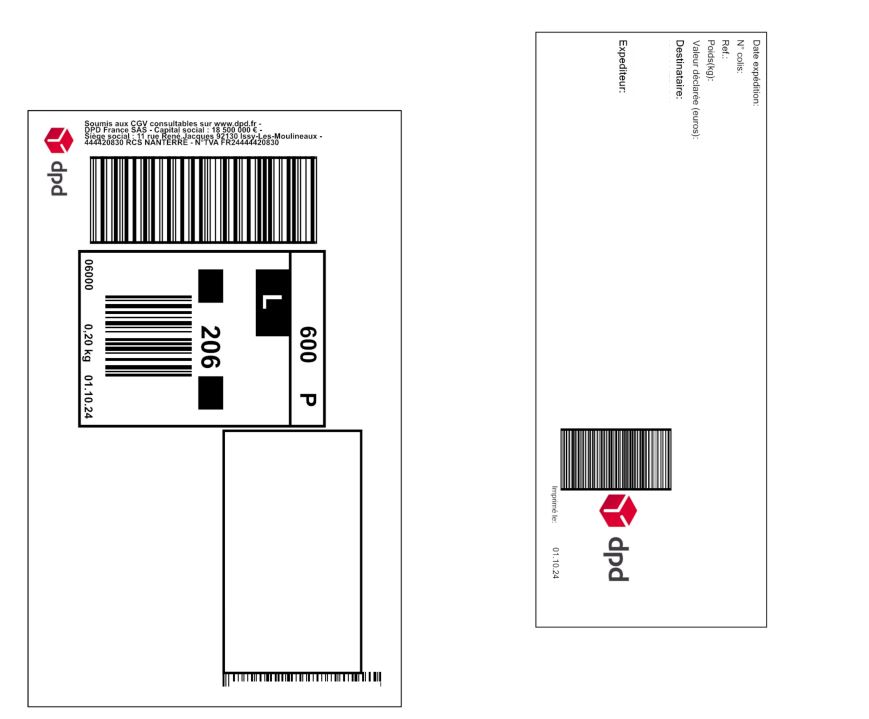
Incorrect label format (not Geolabel)
If your label appears in the format below, your sender account is using an old label format that is incompatible with myDPD for Business.
In this case, you will need to contact your sales representative to request a switch to the Geolabel format for your account.
Label printed with a solid black background
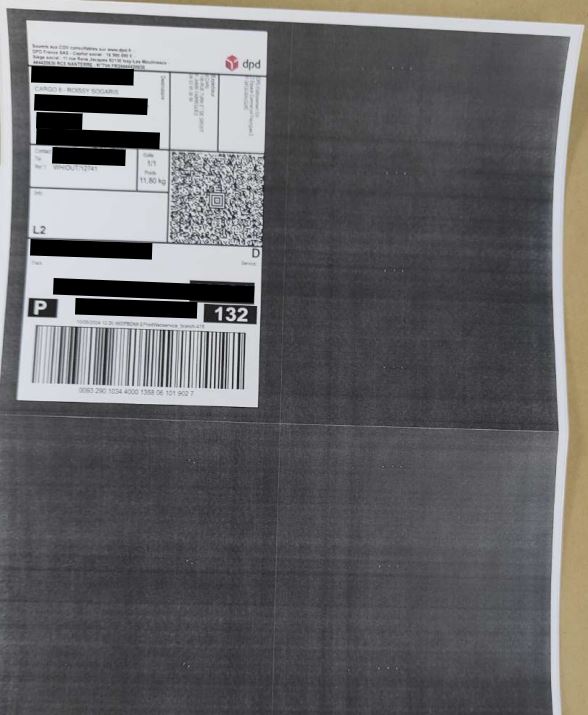
Label printed with a solid black background
If you encounter this issue, you must disable the ‘Print background graphics’ option in the print preview stage.
I use a thermal printer
Label printed horizontally or overlapping two labels
Label printed horizontally or overlapping two labels
This issue is usually related to using an outdated version of your browser.
The minimum browser versions are:
-
Chrome : version 104 or higher
-
Safari : version 15.6 or higher
-
Edge : version 104 or higher
-
Firefox : version 123 or higher
Incorrect label format (not Geolabel)
Incorrect label format (not Geolabel)
If your label appears in the format below, your sender account is using an old label format that is incompatible with myDPD for Business.
In this case, you will need to contact your sales representative to request a switch to the Geolabel format for your account.
Barcodes and blurred text
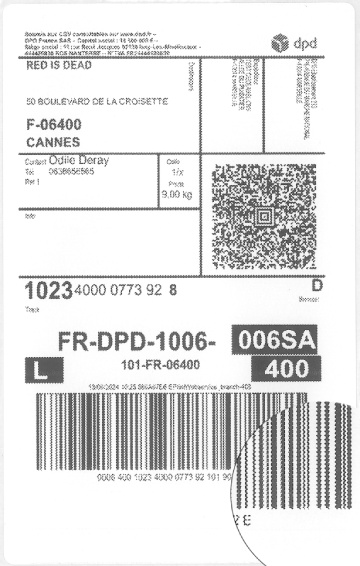
Barcodes and blurred text
If you are using a Windows PC, you must disable dithering in your printer settings.
👉 Consult our installation and configuration guide for Windows.
If you are using a Mac, Chromebook, or Linux PC: the Tramage setting is not available on these systems, but our tests show that the labels produced are clearly legible.
Cut label
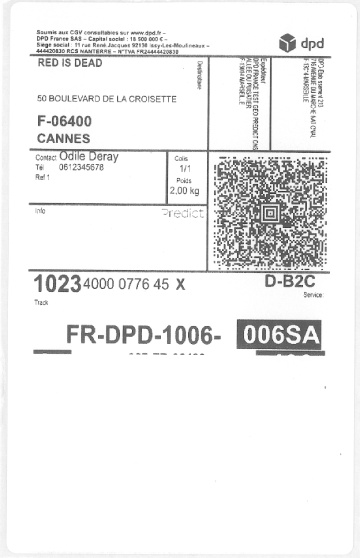
Cut label
In this case, you must check the consumable size set for the printer.
Find our installation and configuration guides here: