Shoprenter

The DPD proprietary application is available free of charge for all Shoprenter webshops. To install it, select the DPD application on the “Applications” page within your Shoprenter admin interface.

The application supports both home delivery and pickup point orders.

Once the data has been successfully transmitted, the generated parcel labels can be downloaded directly from the webshop interface.

The application automatically updates order statuses in line with changes in the parcel delivery status.
shoprenter10

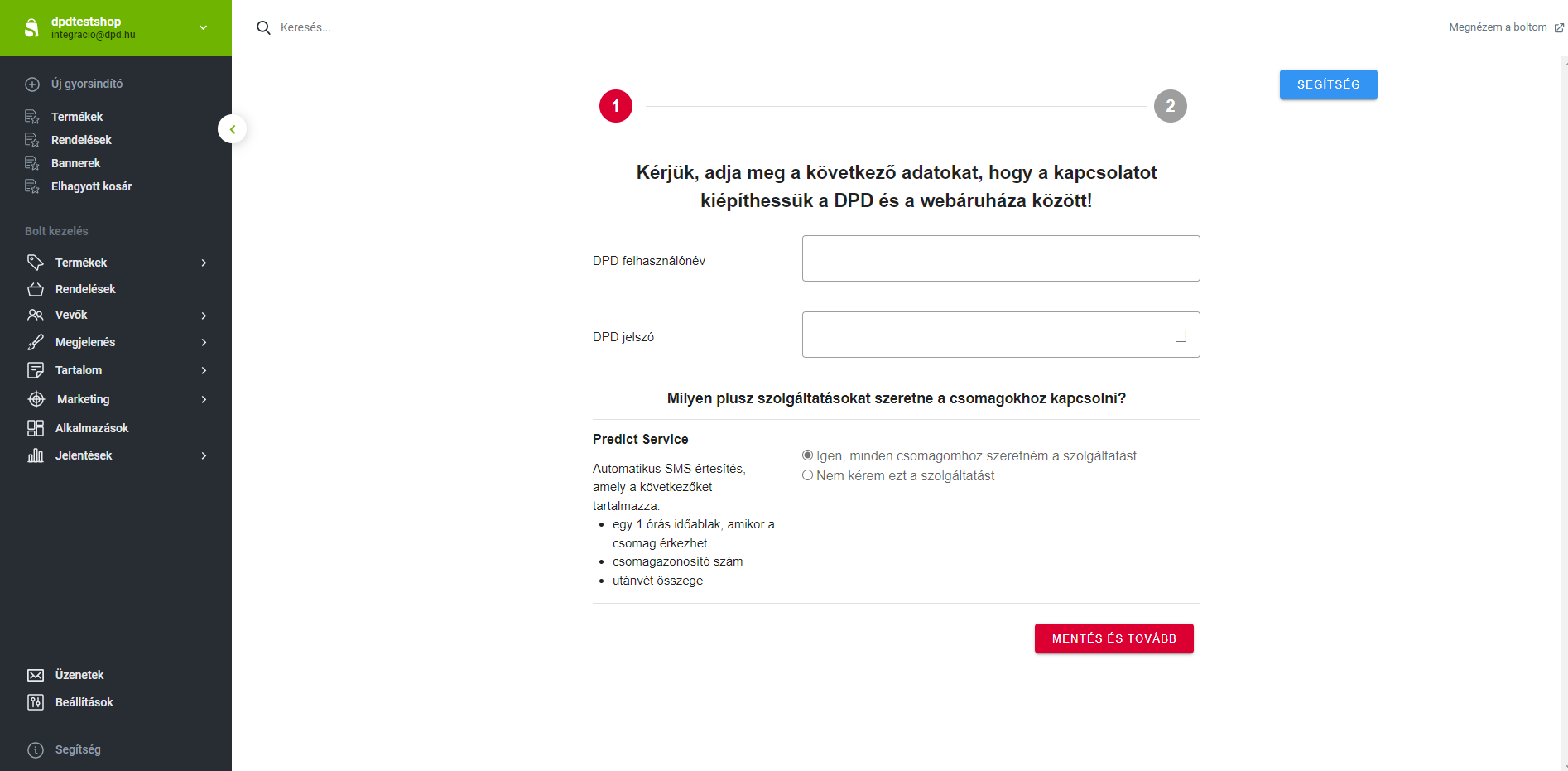
Application Installation Settings

These settings can be modified later.

Settings

shoprenter20 shoprenter20

Settings

1/2


In the “DPD Username” and “DPD Password” fields, please enter the credentials provided by our sales representatives after the contract has been concluded.

The Predict Service is an optional, paid service. For more information, please refer to our General Terms and Conditions.

Settings

shoprenter30 shoprenter30

Settings

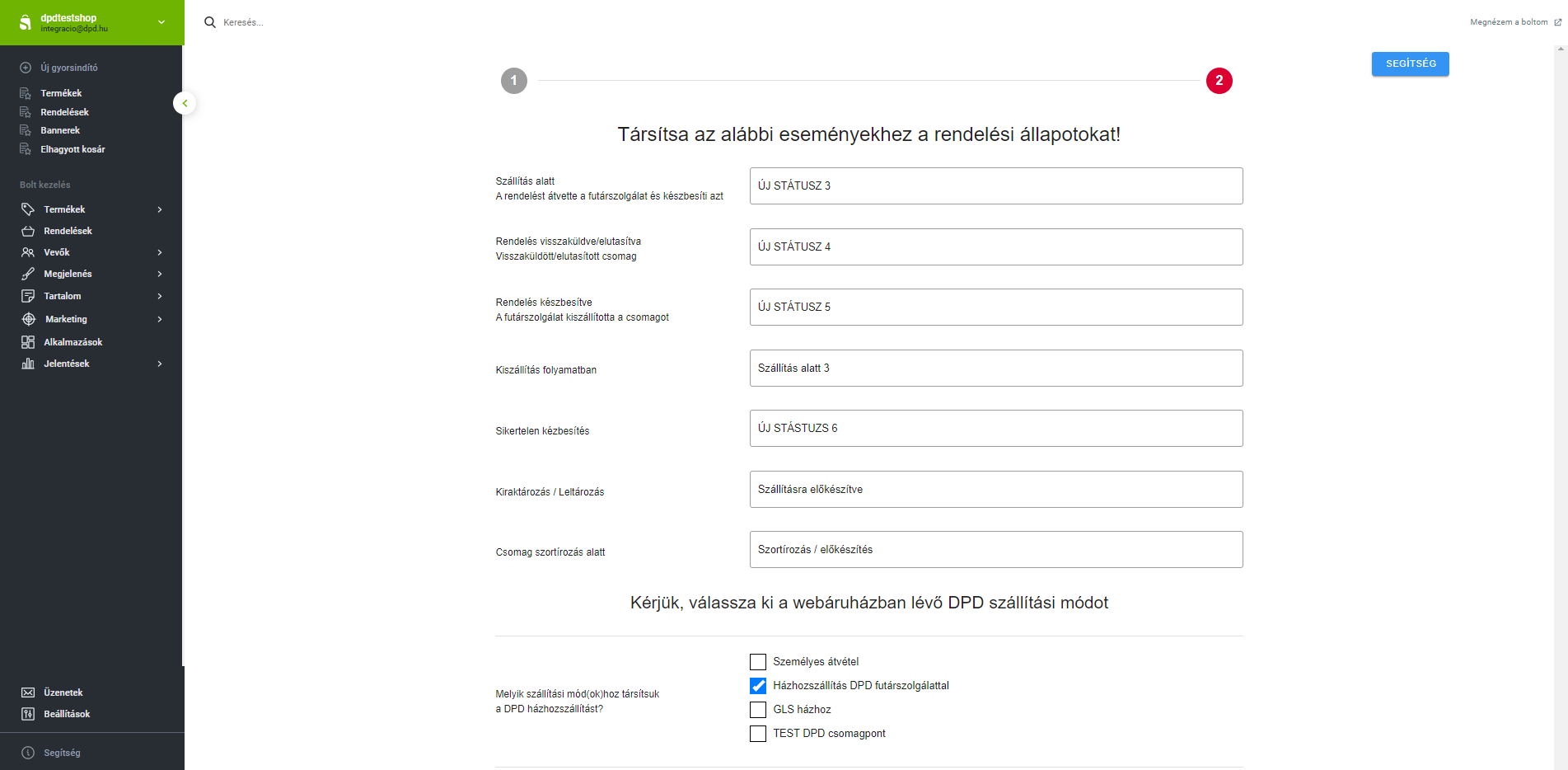
2/2

Assign order statuses to the following events

On this page, you must define which order statuses in your Shoprenter store should be applied when the delivery status changes within DPD.

The lists displayed in the application reflect the order statuses configured in your webshop.

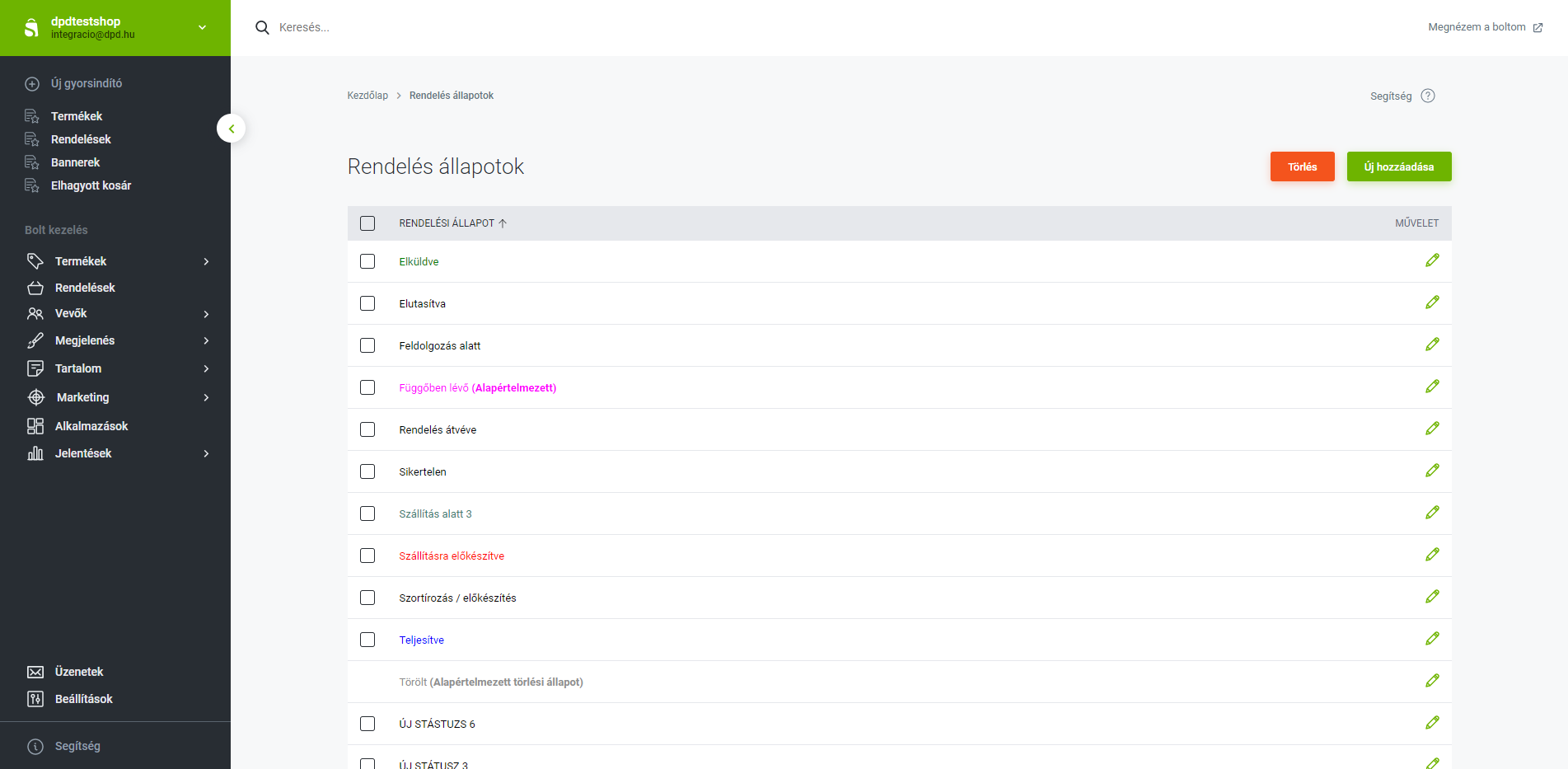
If you wish to create new order statuses, you can do so here:

Shoprenter

shoprenter40 shoprenter40

Shoprenter

Settings -> Order Statuses

Select the DPD shipping method used in your webshop

The list in the application displays the shipping methods configured in your webshop. The “DPD Pickup Point” shipping method will not appear in the list, as pickup point orders are automatically recognized by the application.

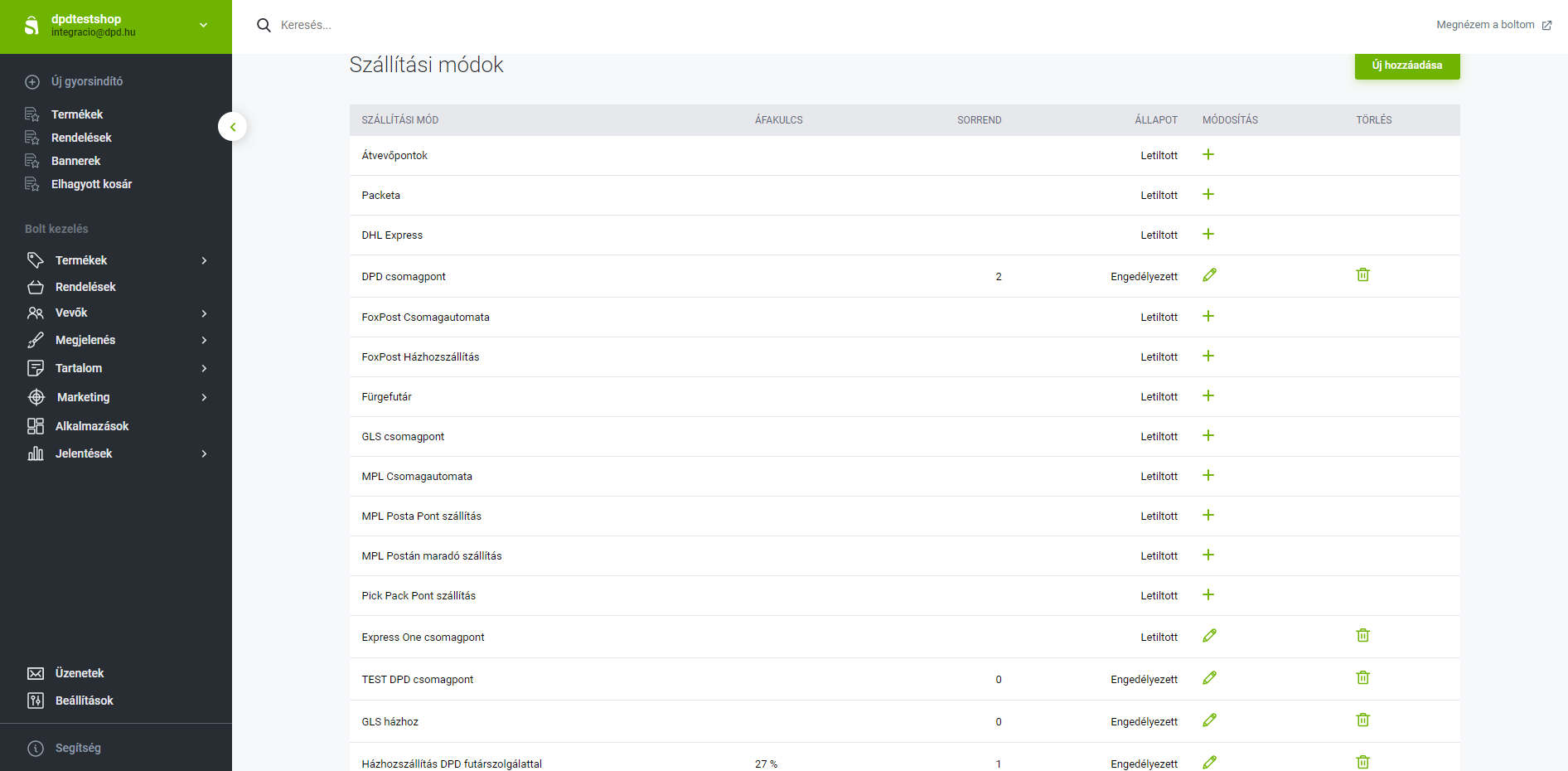
If you have already created a DPD shipping method, simply select it from the list.

If not, you can create one here:


Shoprenter

shoprenter50 shoprenter50

Shoprenter

Settings -> Delivery methods

Application Functionality

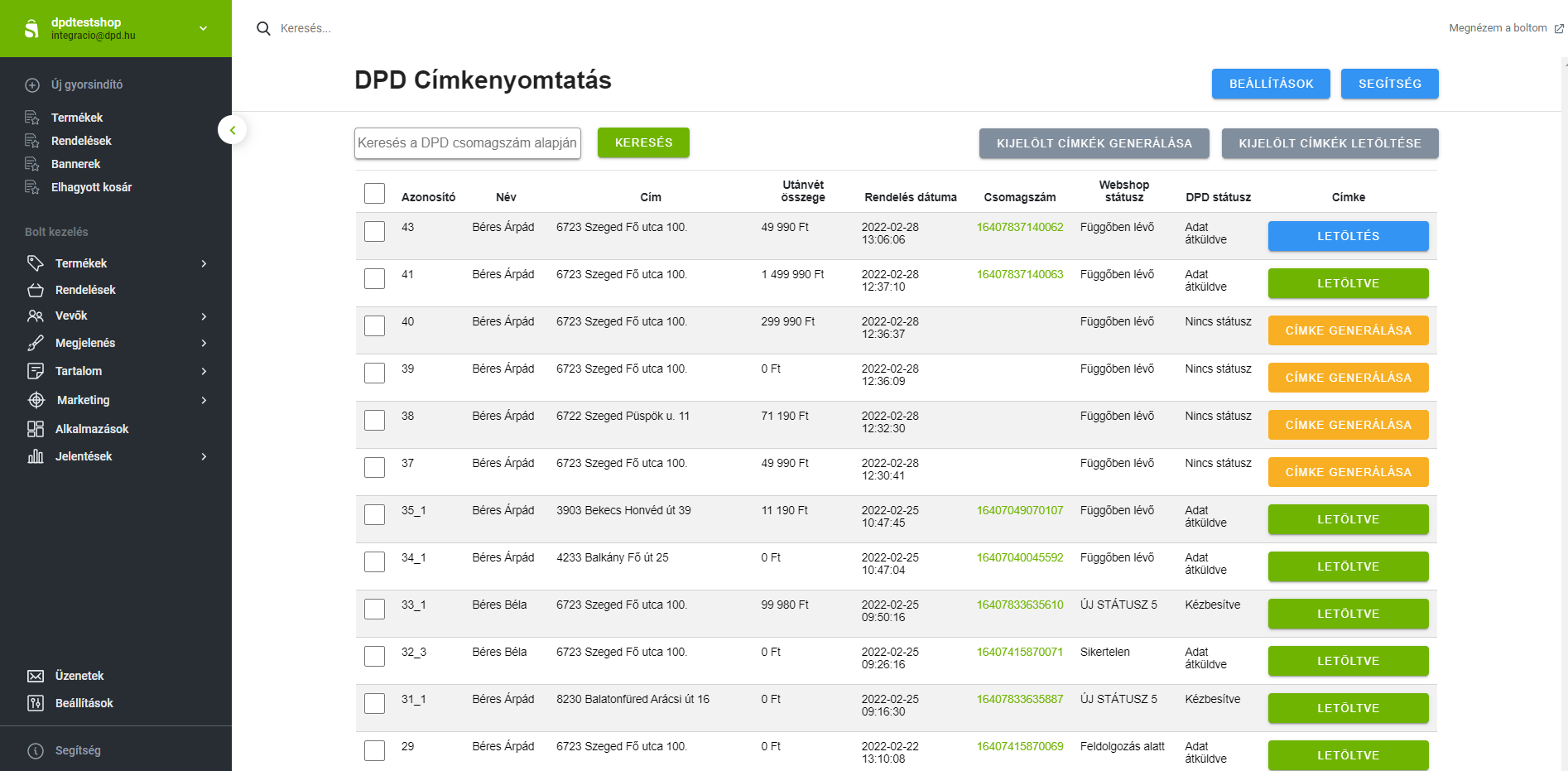
On the main page of the application, you can view incoming orders for DPD pickup points and the selected DPD shipping method.

To generate a parcel label, click the “GENERATE LABEL” button. After successful generation, the parcel number will appear in the relevant column, and the button label will change to “DOWNLOAD”.

To download the label, click the “DOWNLOAD” button. The label will be saved to your computer and can be printed. The button will then change to “DOWNLOADED”. Labels can be re-downloaded for up to 30 days.

The same functions are available in bulk by selecting multiple orders and using the “GENERATE SELECTED LABELS” and “DOWNLOAD SELECTED LABELS” buttons.

Application

shoprenter10 shoprenter10

Application

Main page

For any issues related to the application, please contact: [email protected]